Schedules, versions, and file organization
Open a project’s Files page to manage its schedules. Each file has its own activities and schedule settings. The file list also tells you which schedule is Current, which is the Baseline, and which files make up the update history.
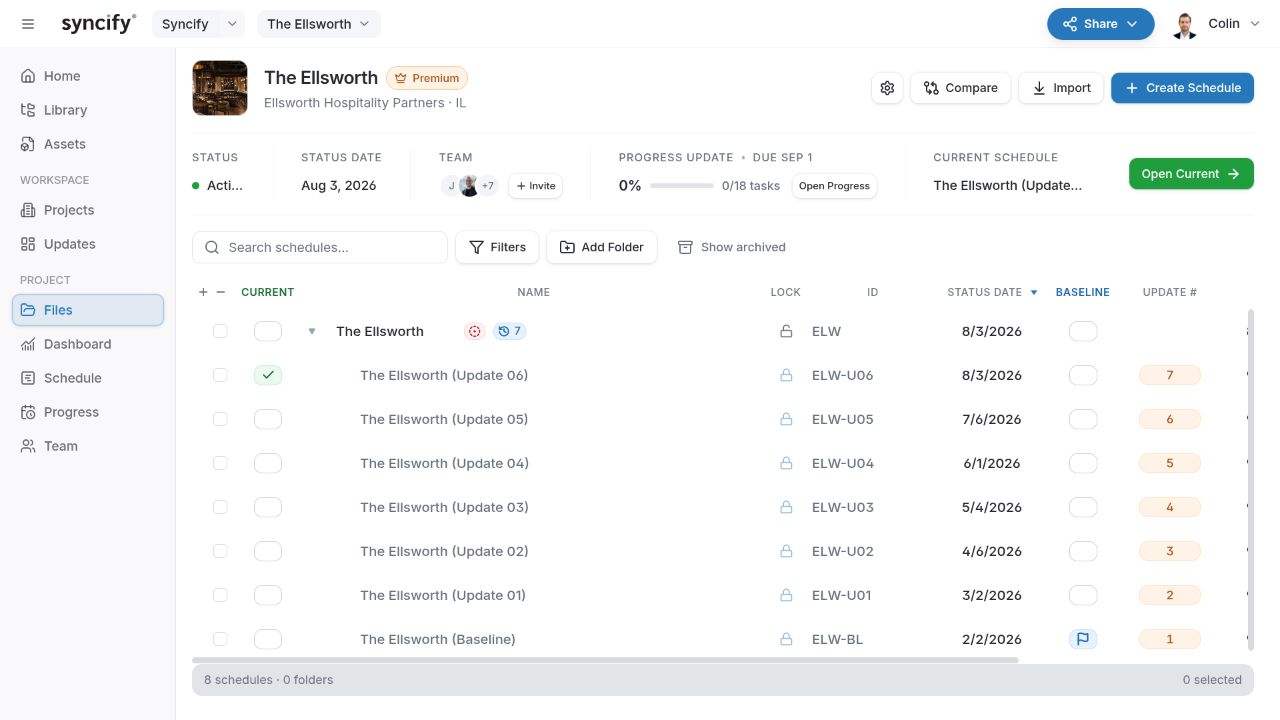

Create and open a schedule
- Open the intended project and choose Files.
- Choose Create Schedule, enter the requested name and ID, and create the file. From Home, New schedule also asks you to choose the destination project.
- Open the new schedule to add work, or choose Import to bring in an existing source file instead.
Select a file’s name or use its Open action. Open Current opens the designated Current file. Inside the Gantt, the schedule selector lets you choose another accessible schedule.
Creation and editing depend on your project role and account capabilities. If you can read a file but cannot create one, see Roles and access.
Choose Current and Baseline
Use the Current selector on the row that should open by default for this project. Selecting a different row transfers the designation. This does not merge the two schedules or copy changes between them.
Use Baseline to choose the file that represents the comparison reference. A baseline should be a preserved plan whose meaning the team agrees on. The designation can be cleared or moved later; changing it changes what baseline comparisons mean.
Marking a file Current or Baseline does not itself freeze the file. Preserve an appropriate version and use file locking where needed.
Build the update sequence
Set Update # on the files that belong in the project’s reporting history. Use the sequence in reporting order, such as baseline followed by monthly issued updates. You can reorder tagged updates by dragging an update number onto another, and remove a tag with its remove control.
Before interpreting dashboard trends, check both the update order and each file’s status date. An incorrectly ordered file can make a date or performance trend misleading. Use the Notes field for context such as approval status or the reason for a reissue.
Save a version or a copy
Normal schedule edits save as you commit them; Save As is for preserving or branching the file, not for saving every cell edit. Wait for edits to finish and resolve any reported save error before leaving the page.
| Action | Result | Use it for |
|---|---|---|
| Save version | A snapshot nested beneath the original schedule | Record a review, submission, or issued state |
| Save copy or Copy | A separate schedule that can be edited independently | Try an alternative, build a recovery plan, or reuse a schedule |
| Complete update | A child version produced by a progress cycle | Preserve the reviewed result of collected progress |
In the schedule, choose Save As and select the desired action. File actions also provide version and copy commands where available. Supply a meaningful name and ID; a copy can be placed in a folder and made Current.
Expand the parent row in Files to see versions. A child version’s logic is read-only while it remains a version. Use Copy to make an editable alternative. Move out of parent makes a version a standalone, editable file. This also applies to versions saved by a completed progress update.
A copy does not continue synchronizing with its source. Changes to one file do not update the other.
Understand a locked file
A lock prevents schedule editing. Imported P6 files start locked so you can inspect the original state before changing logic or calculating dates. Other file types and saved versions can have different editability rules.
If you have permission, unlock an ordinary working file before editing. A version is not made editable merely by looking for a lock toggle: use its permitted copy or file actions. Archived schedules and files in a managed progress stage can also restrict editing.
If the file still cannot be edited, check Why can’t I edit?.
Folders, search, and archives
Choose Add Folder to organize schedules inside the project. Use file actions to move schedules to the appropriate folder. Folders help people browse; they are not WBS groups and do not change schedule logic.
Search the list and open Filters to narrow by designations, notes, or folder. Enable Show archived to include archived files. Hide-empty-folder settings can make an otherwise expected folder disappear.
Archive removes a file from the normal working list while keeping it available to restore. Delete removes data and requires the appropriate access. Do not use deletion simply to tidy an old working list.
Replace or reload an imported file
Use an import’s Replace option when the intent is to overwrite an existing target schedule with a new source. Review the target carefully; the existing schedule’s name and ID are retained. Import as a new schedule when the old submission must remain available for comparison.
Reload on an imported file reprocesses its source; it is different from refreshing the browser page. Preserve any important Syncify edits before an action that replaces imported data. See Import a schedule for custom-column carryover and review steps.